Markdown for notes: a beginner's guide with a cheat sheet
Markdown for beginners: what it is, why plain-text notes last, every basic element with examples, a cheat sheet to bookmark and the mistakes to avoid.
On this page
Markdown is a simple way to format plain text with a few ordinary symbols: a # in front of a line makes a heading, **two asterisks** make text bold, and a - starts a list item. You type the symbols, a Markdown app shows the formatted result, and the file underneath stays readable text that any device can open.
That makes it a good fit for everyday notes. This is a Markdown guide for beginners, focused on notes rather than code. It explains what Markdown is, walks through every basic element with the source and the result side by side, and ends with a cheat sheet you can bookmark, the mistakes almost everyone makes at first, and habits that make writing in Markdown fast.
What is Markdown?
Markdown is a lightweight markup language. "Markup" just means marks you add to text to say how it should look: this is a heading, this word is important, these lines are a list. HTML, the language of web pages, is also markup, but it is wordy: <strong>milk</strong>. Markdown does the same job with **milk**.
John Gruber created Markdown in 2004, with a lot of feedback from Aaron Swartz. According to the original project page, the main design goal was to "make it as readable as possible." A Markdown document should make sense even if nobody ever converts it. Look at a shopping list written in Markdown and you can read it perfectly well as it is.
You type
**Buy** milk
A plain text file
notes.md, readable anywhere
You see
Buy milk
One language, several dialects
Gruber's original description left some details open, so different apps started to interpret the same text slightly differently. To fix that, a group of developers wrote CommonMark, a precise specification of the core syntax. The current version, as of September 2026, is 0.31.2, published in January 2024.
GitHub then built GitHub Flavored Markdown (GFM) on top of CommonMark. It adds tables, task lists with checkboxes, strikethrough and automatic links. Most note apps support CommonMark plus some or all of GFM, and then add extras of their own, such as highlighting or links between notes.
- Markdown dialect
- A version of Markdown with its own additions or small differences. The basics in this guide work the same way in almost every dialect. The extras are what differ from app to app.
For your notes, this means one simple thing: the basics in this guide are safe everywhere. When you use an extra feature, check whether the other apps you rely on understand it. The companion article on tables, task lists, math and diagrams marks which dialect each advanced feature comes from.
Why write notes in Markdown?
Plenty of note apps use their own internal format. You click a bold button and the app stores that formatting in a way only it fully understands. Markdown takes the opposite approach: the formatting lives in the text itself. That has practical consequences.
Markdown file
- Opens in any text editor, on any system, with or without internet access
- Readable even if the formatting is never displayed
- Tiny files that are easy to back up, sync and search
- Moves between apps; an export is just a copy of the text
App-specific format
- Often needs the original app, or its export tool, to read properly
- Formatting can be lost or garbled when you switch apps
- Harder to back up in a form you can check yourself
- Tied to the company's future plans
Plain text is one of the oldest and most widely supported digital formats. A .md file is a text file with a different ending, and since 2016 it has had its own registered media type, text/markdown (RFC 7763). Every operating system can open it with the built-in text editor: Notepad on Windows, TextEdit on a Mac, or any code editor.
That is why Markdown is often described as future-proof. No one can promise that about any file forever, but a format that is readable by humans without software is as close as it gets. If your note app disappeared tomorrow, a folder of .md files would still be a folder of readable notes. The same idea is behind local-first notes: your notes should keep working on your device, offline, regardless of what happens to a server.
How to write Markdown: the essentials
Each example below shows what you type on the left (or on top, on a phone) and what a Markdown app displays on the right. Try them in any Markdown editor as you read.
Headings
Start a line with one to six # characters, then a space. One # is the largest heading, usually the note's title. Two is a section, three a subsection, and so on.
You type
# Trip to Lisbon
## Packing list
### Documents
You get
Trip to Lisbon
Packing list
Documents
The space after the # matters. In CommonMark, #Packing is ordinary text, not a heading. In practice, most notes need only two or three levels.
Paragraphs and line breaks
This is the rule that surprises most beginners. A blank line starts a new paragraph. A single line break usually does not. Many Markdown renderers join lines that follow each other into one paragraph.
You type
Call the dentist
Book the train

Ask Anna about Saturday
You get
Call the dentist Book the train
Ask Anna about Saturday
The first two lines became one paragraph with a space between them. When you really want a new line inside a paragraph, for example in an address, end the line with a backslash \. The original trick of ending a line with two spaces also works, but the spaces are invisible and easy to lose.
You type
Anna Smith\
12 Harbor Street\
Lisbon
You get
Anna Smith
12 Harbor Street
Lisbon
Bold, italic and strikethrough
Wrap text in one asterisk for italic, two for bold, and three for both. Underscores work too (_italic_, __bold__), but asterisks are the safer habit because they also work in the middle of a word. Strikethrough uses two tildes; it comes from GFM, so it works in most apps but is not part of CommonMark.
You type
The flight is *probably* on **Friday**.
It leaves at ***6:40 in the morning***.
~~Take a taxi~~ Take the metro.
You get
The flight is probably on Friday.
It leaves at 6:40 in the morning.
Take a taxi Take the metro.
Lists
For a bulleted list, start each line with -, * or + and a space. Pick one and stick with it; - is the most common. For a numbered list, use a number, a period and a space.
You type
- Passport
- Charger
- Sunscreen

1. Check in online
2. Print the boarding pass
3. Leave by 5:30
You get
- Passport
- Charger
- Sunscreen
- Check in online
- Print the boarding pass
- Leave by 5:30
The numbers you type are less important than you might think. In CommonMark, only the first number counts: a list written as 1., 1., 1. still displays as 1, 2, 3. That makes it easy to reorder steps later.
To put a list inside a list, indent the inner items so they line up with the text of the item above. Four spaces work for both bulleted and numbered lists; most editors also let you press Tab.
You type
- Clothes
    - Light jacket
    - Walking shoes
- Toiletries
    - Toothbrush
You get
- Clothes
- Light jacket
- Walking shoes
- Toiletries
- Toothbrush
Links
Put the text people click in square brackets and the address right after it in parentheses, with no space between them. To show a bare address as a clickable link, wrap it in angle brackets.
You type
Tickets are on [the museum website](https://www.example.com/tickets).
Opening hours: <https://www.example.com/hours>
You get
Tickets are on the museum website. Opening hours: https://www.example.com/hours
Many apps also turn a bare https:// address into a link automatically. That is a GFM feature, so the angle brackets are the portable choice. Note apps often add their own style of link between notes, such as [[Note title]]; that is an extension, covered in the advanced guide.
Images
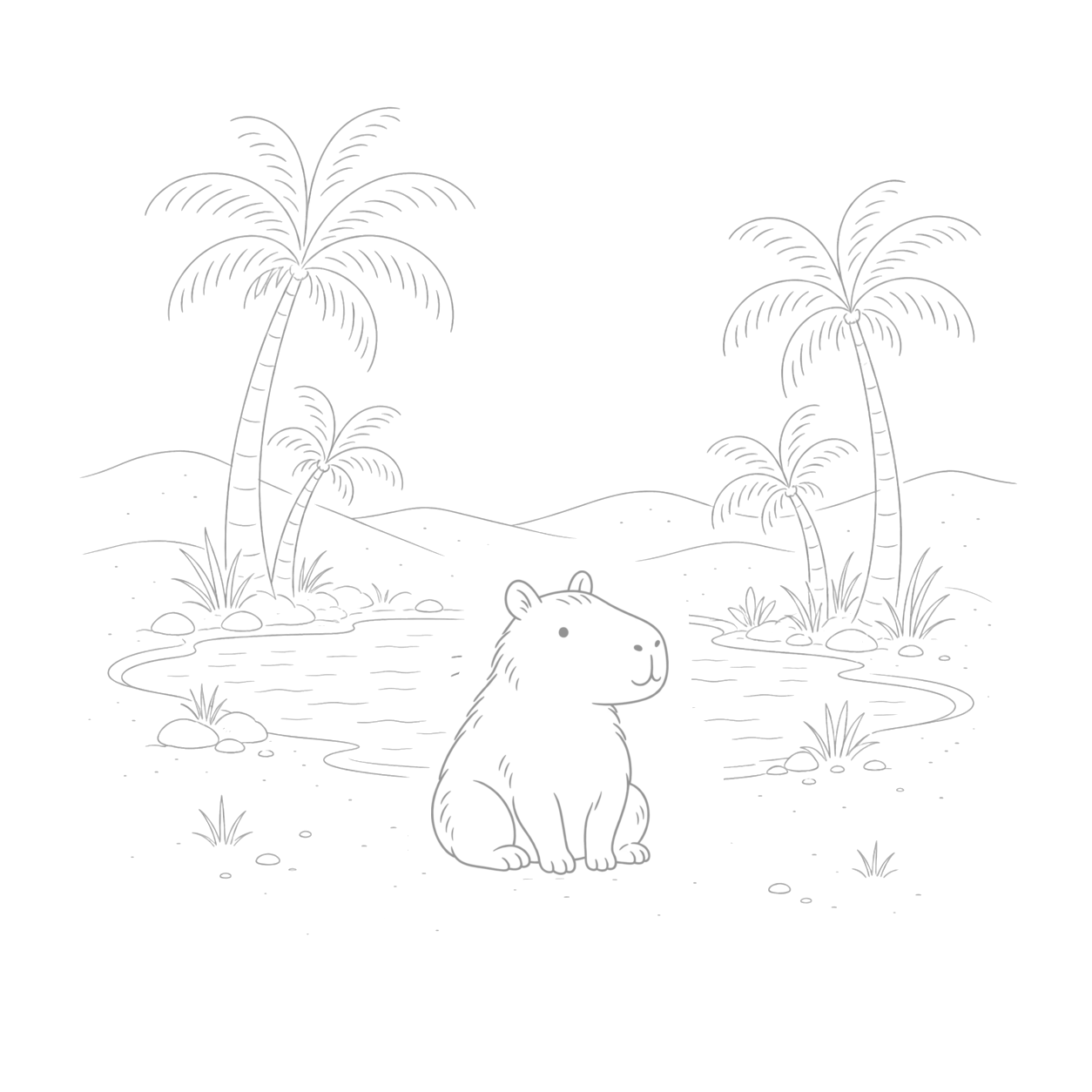
An image looks like a link with an exclamation mark in front. The text in square brackets is the alternative text: a short description that screen readers read aloud and that appears if the image cannot load.
You type
You get

The image itself is a separate file or a web address. The Markdown only points to it. If you move a note to another app, move its images too, or the links will break. Also keep in mind that an image from a web address is loaded from that server whenever the note is displayed.
Quotes
Start a line with > to quote someone or to set a thought apart. Every line of a longer quote can start with >, and a line with just > keeps the quote going across paragraphs.
You type
> Pack light. You will buy
> something there anyway.
>
> (Grandma, every single trip)
You get
Pack light. You will buy something there anyway.
(Grandma, every single trip)
Inline code and code blocks
Wrap a short piece of code, a file name or a keyboard command in single backticks: `notes.md`. For several lines, put three backticks on the line before and three on the line after. You can name the language after the opening backticks; some apps use it to color the code.
You type
Rename the file to `notes.md`.

```
git add notes.md
git commit -m "First note"
```
You get
Rename the file to notes.md.
git add notes.md
git commit -m "First note"
Inside code, Markdown symbols are left alone. That makes code blocks handy for anything you want to keep exactly as typed, such as a command or a snippet of a configuration file.
On many keyboards the backtick sits to the left of the 1 key. On some European layouts it is a "dead key": press it and then the space bar to get the character.
Horizontal rules
Three hyphens, asterisks or underscores on a line of their own draw a dividing line. Leave a blank line above ---, because three hyphens directly under a line of text turn that text into a heading (an older heading style called "setext").
You type
Morning plan

---

Afternoon plan
You get
Morning plan
Afternoon plan
Escaping special characters
Sometimes you want a symbol to stay a symbol. Put a backslash \ in front of it and Markdown shows the character as it is. This works for punctuation that Markdown uses, such as *, _, #, [, ] and ..
You type
2024\. What a year.
Multiply 2\*3\*4.
\# not a heading
You get
2024. What a year. Multiply 2*3*4. # not a heading
Without the backslashes, the first line would become a numbered list starting at 2024, the asterisks would turn the 3 into italic text, and the last line would be a heading.
Markdown cheat sheet for beginners
Here is every element from this guide in one table. The "You get" column is rendered live on this page, so it shows exactly what a CommonMark and GFM renderer produces.
| Element | You type | You get | Tip |
|---|---|---|---|
| Heading 1 | # Title | A top-level heading | One per note is usually enough |
| Heading 2 and 3 | ## Section, ### Subsection | Smaller headings | Always a space after the # |
| Paragraph | Text, blank line, text | Two paragraphs | A blank line separates paragraphs |
| Line break | First line\ then Enter | A new line in the same paragraph | Or two spaces at the end of the line |
| Bold | **important** | important | Keyboard: usually ⌘/Ctrl B |
| Italic | *maybe* | maybe | _maybe_ works too |
| Bold and italic | ***very*** | very | Three asterisks |
| Strikethrough | ~~done~~ | GFM, not CommonMark | |
| Bulleted list | - item | A bullet point | * and + also work |
| Numbered list | 1. item | 1. item | Only the first number counts |
| Nested list | Four spaces, then - item | An indented list | Line up with the text above |
| Task list | - [ ] task | A checkbox | GFM; see the advanced guide |
| Link | [text](https://example.com) | text | No space between ] and ( |
| Automatic link | <https://example.com> | https://example.com | Angle brackets work everywhere |
| Image |  | The picture | The text in brackets is the alt text |
| Quote | > text | An indented quote | Add > to every line |
| Inline code | `code` | code | Symbols inside stay literal |
| Code block | ``` above and below | A block of code | Name the language after the opening backticks |
| Horizontal rule | --- | A dividing line | Blank line above it |
| Escape | \* | * | Works for any Markdown punctuation |
| Table | | a | b | rows | A table | GFM; see the advanced guide |
Common Markdown mistakes and how to fix them
Nearly every beginner hits the same handful of surprises. None of them is hard to fix once you know why it happens.
| What you see | Why it happens | Fix |
|---|---|---|
| Two lines ended up in one paragraph | A single line break does not start a new paragraph | Leave a blank line, or end the line with \ |
#Title shows the # symbol | A heading needs a space after the # | Write # Title |
| A list shows up as one line with dashes | Some renderers need a blank line before a list | Put a blank line between a paragraph and a list |
| A nested item did not nest | It is not indented far enough | Indent to line up with the text above, or use four spaces |
| A year or number became a list | A number and a period at the start of a line starts a numbered list | Write 2024\. |
| Part of a calculation became italic | Asterisks around text mean emphasis | Add spaces (2 * 3) or escape (2\*3) |
| A link shows its brackets | There is a space between ] and ( | Remove the space |
==text== or [[Note]] shows as symbols | That feature is an extension your app does not support | Check the app's documentation, or use a standard element |
| A divider turned the line above into a heading | --- right under text makes a setext heading | Leave a blank line above --- |
How to write Markdown faster
Markdown is quick because your hands never leave the keyboard. A few habits make it quicker still.
Type the symbols as you go. Start a line with - and you have a list; 1. gives you a numbered one; > a quote. After a while you stop thinking about the symbols, the same way you stop thinking about capital letters.
Let Enter do the list work. Most Markdown editors continue a list when you press Enter: the next - or number appears on its own. Press Enter on an empty item to end the list. Tab and Shift+Tab usually indent and outdent an item.
Use the familiar shortcuts. Most Markdown note apps, including Obsidian and Bear, map ⌘/Ctrl B to bold and ⌘/Ctrl I to italic. The app types the asterisks for you, around the selected text.
Paste links over words. In many editors you can select a word and paste a web address over it to get [word](address) in one step.
Keep notes flat and short. Headings give a long note structure you can scan, and a note with a clear title is easier to find than a perfectly formatted one. For ideas on titles, tags and links between notes, see how to organize notes you can find again.
Markdown in Cappa
Cappa, the app made by the team behind this blog, stores every note as Markdown text. Its editor is a live preview: the formatting appears as you type, and the symbols are hidden while the cursor is elsewhere. Move the cursor into a bold word and the ** come back so you can edit them. If you prefer to see every symbol all the time, turn on Show Markdown syntax in the settings.
A few honest notes about how Cappa's Markdown relates to the rest of the world:
- The basics are standard. Headings, emphasis, lists, links, images, quotes, code and dividers follow CommonMark, and tables, task lists and strikethrough follow GFM.
- Some extras come from Bear. A single tilde,
~text~, means underline in Cappa, as it does in Bear. GitHub reads the same text as strikethrough.==text==is a highlight, and a word like#travelis a tag. Other apps may show these as plain symbols. - Lines stay where you type them. Like most live editors, Cappa shows each line on its own line. Use blank lines between paragraphs if a note will be read in another app.
- Your text leaves as text. You can export a single note or a batch of notes to separate Markdown or TXT files, and import Markdown and TXT files and folders.
Cappa is a private, local-first app: the notes are encrypted in your browser before they are synced. That does not change the Markdown itself. An exported .md file is plain, readable text, so store it somewhere safe.
Where to go next
Once the basics feel natural, the next step is structure. The advanced Markdown guide covers tables, task lists, footnotes, highlights, math and diagrams, and says which apps support each one. If you are wondering how to arrange many notes, Zettelkasten and PARA are two popular methods that work well with plain Markdown files.
FAQ
Is Markdown hard to learn?
No. The elements most people use every day (headings, bold, italic, lists and links) take about ten minutes to learn, and the full set of basics in this guide fits on one screen. The only rule that needs a bit of practice is the difference between a blank line and a single line break.
What is an .md file and how do I open it?
An .md file is a plain text file that contains Markdown. You can open it with any text editor, such as Notepad on Windows or TextEdit on a Mac, and read it as it is. To see the formatting, open it in a Markdown app, a code editor with a preview such as VS Code, or upload it to a service like GitHub.
Is Markdown the same in every app?
The basics are. Headings, emphasis, lists, links, images, quotes and code work the same way in almost every app that follows CommonMark. Tables, task lists and strikethrough come from GitHub Flavored Markdown and are widely supported. Highlights, links between notes, math and diagrams are extensions that vary from app to app.
Should I use asterisks or underscores?
Both work for italic and bold. Asterisks are the safer habit because they also work inside a word, while underscores inside a word, as in file_name_final, are left alone on purpose. Pick one style and use it consistently so your notes stay easy to read as plain text.
Can I write Markdown on my phone?
Yes. Markdown uses ordinary characters, so any phone keyboard can type it, and many note apps show a small formatting bar above the keyboard that inserts the symbols for you. The backtick and the tilde usually sit on a secondary symbol page, and on some keyboards the backtick appears when you long-press the apostrophe.